
View modes: Normal, Advanced, AI Agent
The Dashboard offers three View modes — Normal, Advanced, and AI Agent — selected from a segmented control at the top of the page. A View mode is a presentation switch: it changes how the Dashboard body is laid out without navigating away from the page. It is orthogonal to Forensic Mode and to the selected Case, both of which stay in effect no matter which View mode you choose.
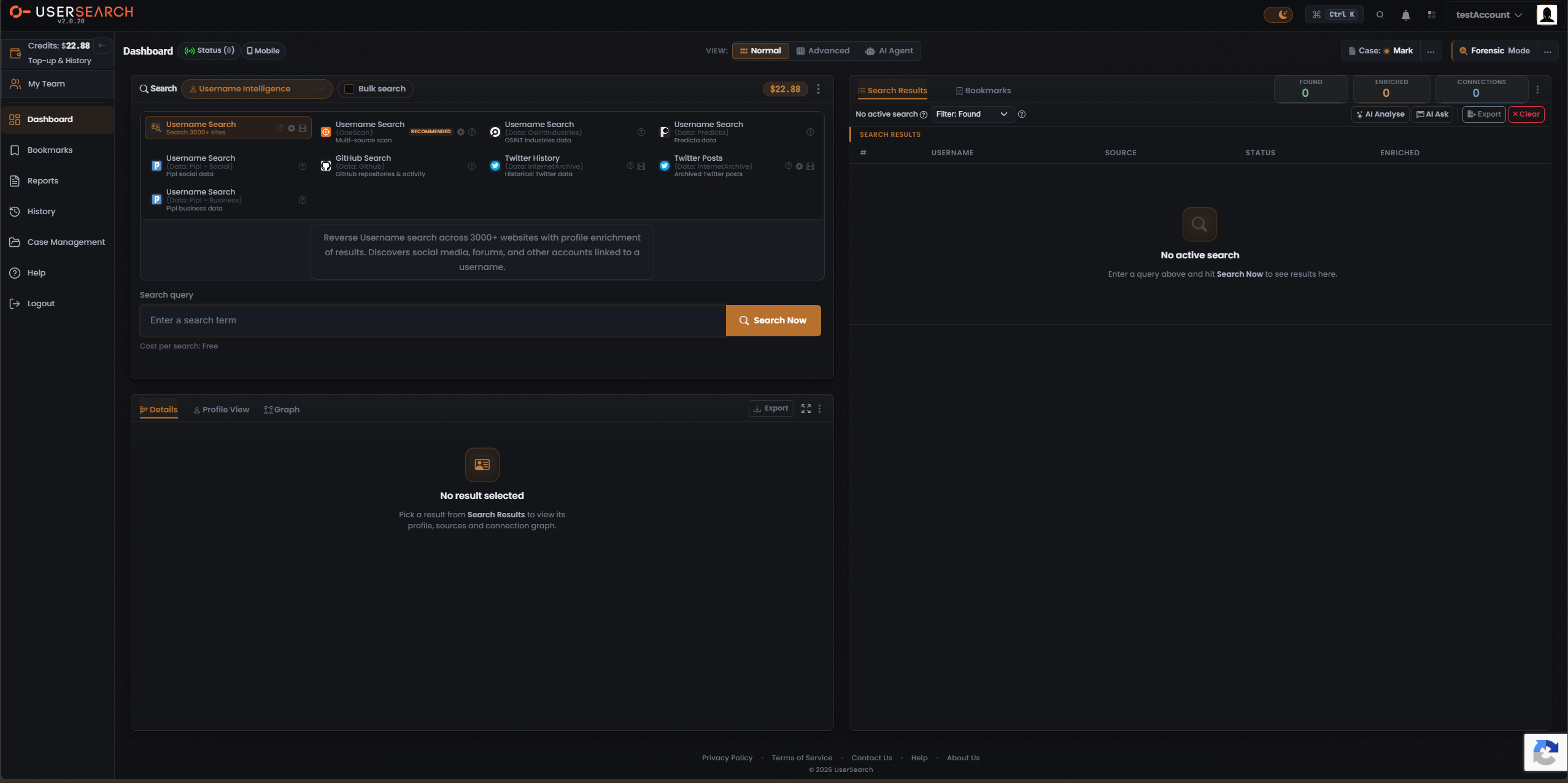
The View-mode control
Section titled “The View-mode control”At the top of the Dashboard, a segmented control labelled VIEW: offers three mutually exclusive segments:
- Normal — the base two-column workspace.
- Advanced — the Normal workspace plus inline case panels.
- AI Agent — a promo gateway into the AI Agent workspace.
Each segment carries a leading icon, and exactly one segment is active at a time (shown in the coral-orange active state). Selecting a segment re-renders the Dashboard body in place — the top header, left nav, Credits balance, footer, and the header context controls (Case, Forensic Mode, Status, Mobile) all persist across the three modes.
Normal view
Section titled “Normal view”Normal lays out the Dashboard as a two-column workspace.
- Left — Search panel. A Search type selector (for example, Username Intelligence), a Bulk search checkbox, a Credits/cost pill, and an overflow menu. Below sits a grid of Module tiles (for example, Username Search, Username Search (OneScan) marked RECOMMENDED, GitHub Search, and several data-provider modules). A description panel summarises the selected Module, and the query area has an Enter a search term input, a coral Search Now button, and a Cost per search line.
- Right — Results panel. Tabs for Search Results and Bookmarks; three counter tiles — FOUND, ENRICHED, and CONNECTIONS; a Filter: Found dropdown; and action buttons AI Analyse, AI Ask, Export, and Clear. The results table columns are # · USERNAME · SOURCE · STATUS · ENRICHED, with an empty state until you run a search.
- Lower panel. Result-detail tabs — Details, Profile View, and Graph — an Export button, and an empty state prompting you to pick a result.
Advanced view
Section titled “Advanced view”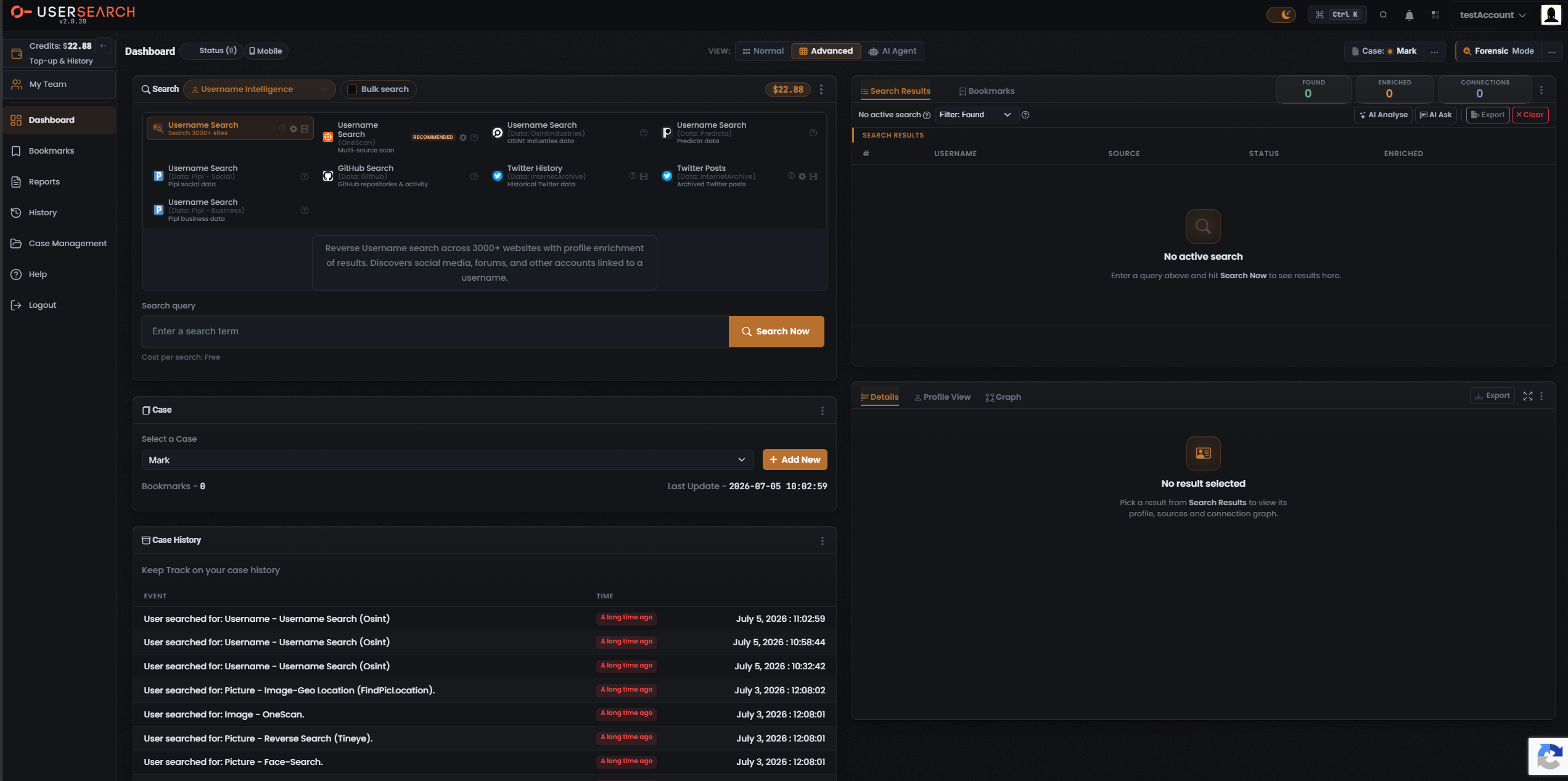
Advanced view retains the entire Normal layout — Search panel, Module grid, query box, right-hand Results panel, and the Details / Profile View / Graph panel — and adds two inline case-management panels beneath the Search panel.
- Case panel. A Select a Case label, a case dropdown showing the active Case, an + Add New button, a Bookmarks count, a Last Update timestamp, and an overflow menu. Selecting a Case here updates the global active Case shown in the header. + Add New creates a new Case.
- Case History panel. Subtitled Keep Track on your case history, this is a two-column log table with EVENT and TIME columns. Each row records an action (for example, a username or picture search) with an absolute timestamp and a relative-time chip.
In Advanced view the Details / Profile View / Graph section moves down to sit opposite the Case panels; its empty state is unchanged.
AI Agent view
Section titled “AI Agent view”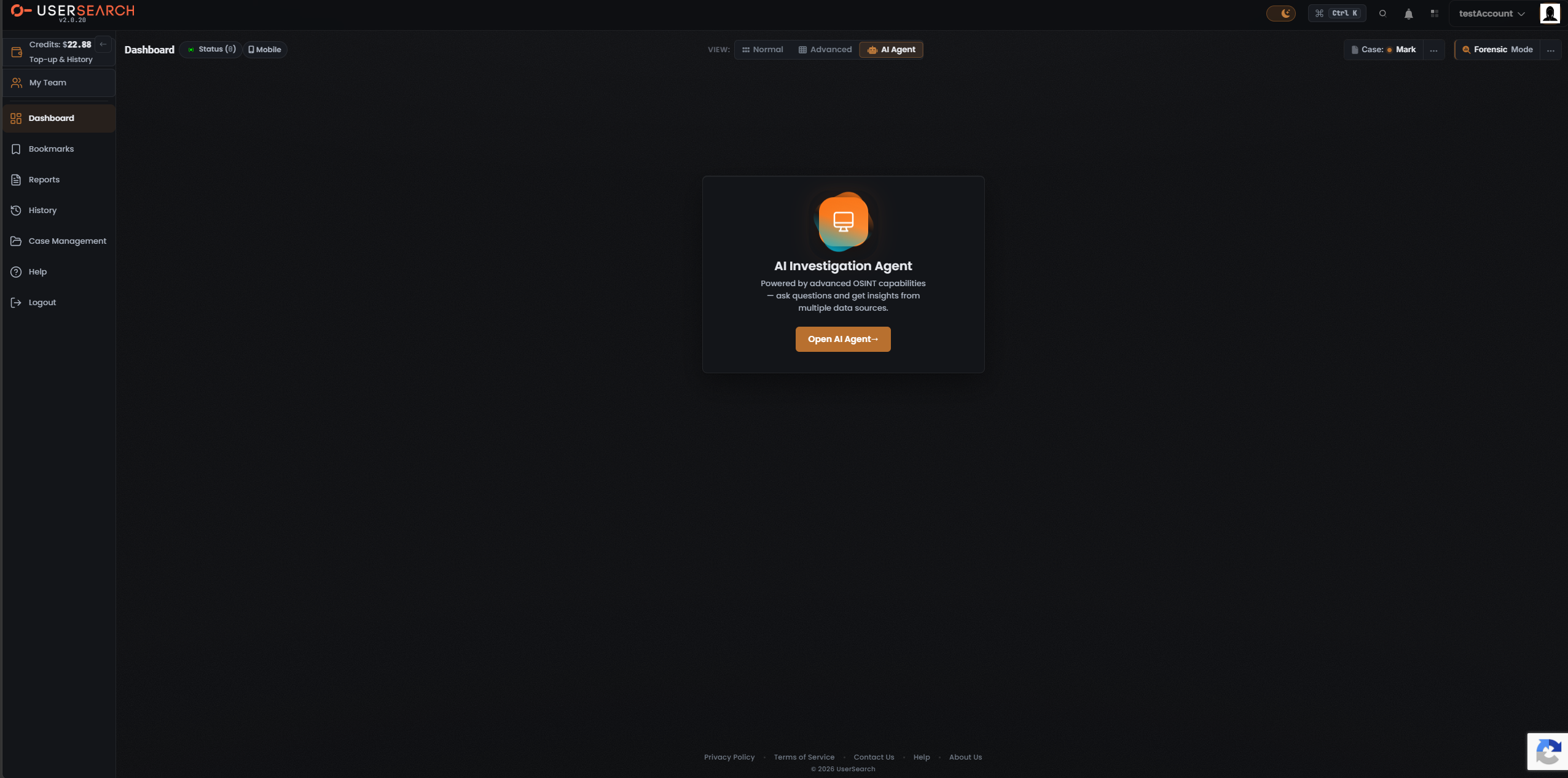
AI Agent view replaces the entire Dashboard body with a single centered promo card, hiding the Search panel, Results panel, and Case panels. The card shows:
- A gradient monitor icon.
- The heading AI Investigation Agent.
- Body text: Powered by advanced OSINT capabilities — ask questions and get insights from multiple data sources.
- A coral Open AI Agent → button, which launches the AI Agent (S.A.R.G.E.) search workspace.
The left nav, top header, all header context controls (the VIEW toggle, Case, Forensic Mode, Status, Mobile), and the footer all remain in place.
Comparison
Section titled “Comparison”| Aspect | Normal | Advanced | AI Agent |
|---|---|---|---|
| Search panel + Module grid | Yes | Yes | Hidden |
| Search Results panel | Yes | Yes | Hidden |
| Details / Profile View / Graph | Yes | Yes (repositioned) | Hidden |
| Case panel (inline) | No | Added | Hidden |
| Case History panel | No | Added | Hidden |
| Body content | Two-column workspace | Workspace + case panels | Single promo card |
| Chrome, footer, header context controls | Persist | Persist | Persist |
Verified against UserSearch v2.0.20