
Leaks & breaches search: overview
The Public Leaks Search type checks whether an identifier you hold — an email address, phone number, IP address or similar value — appears in known public data leaks and breaches. Point it at a value you want to check, pick the leak data source you trust, and it reports where that value has been exposed in leaked or breached data.
Reach for Public Leaks when the question is “has this been exposed in a breach?” rather than “where does this person have accounts?” (which is Username Intelligence) or “what does this email resolve to?” (email-oriented search types). It is the breach-exposure Search type in the OSINT workflow.
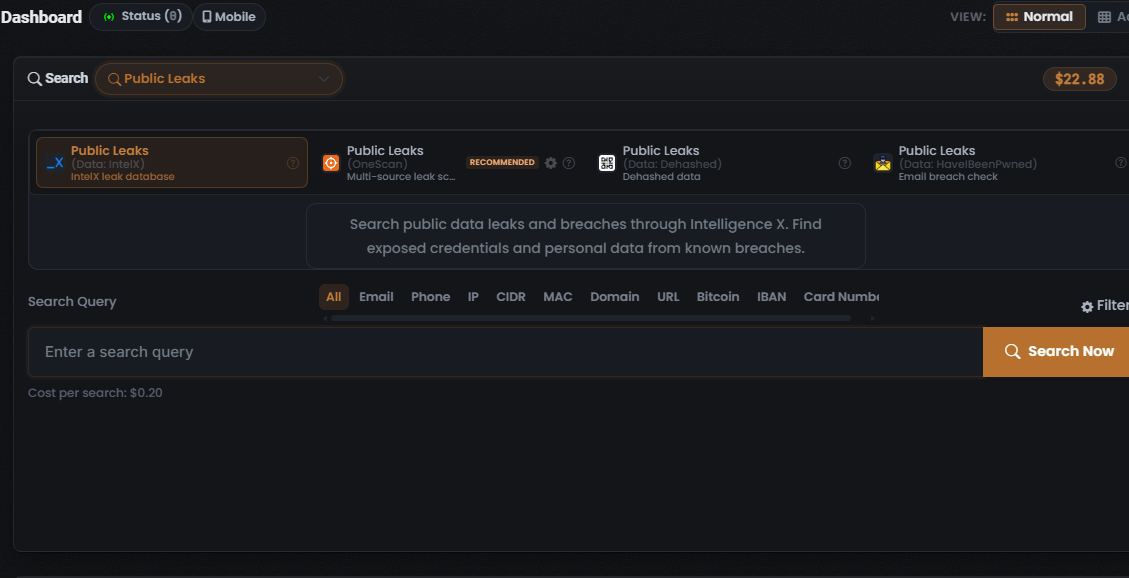
The end-to-end flow
Section titled “The end-to-end flow”Like every Search type, Public Leaks is built in the left-hand search composer and runs against the Search Results panel on the right. The flow is:
- Pick a Module. The Public Leaks Module row offers several Modules — each queries a specific leak data source (IntelX, Dehashed, HaveIBeenPwned), plus OneScan, which queries several leak data sources at once. The Module you click becomes the active search source and loads its description, cost line and query form below. IntelX is the Module selected when the Search type opens.
- Choose an entity type (optional). Public Leaks adds an entity-type tab strip above the query field — All, Email, Phone, IP, CIDR, MAC, Domain, URL, Bitcoin, IBAN, Card Number and more. Selecting a tab constrains the search to that kind of identifier; All is selected by default.
- Configure OneScan (optional). If you pick OneScan, open its Choose Data Source modal (the gear icon on the tile) to choose which leak data sources it queries and see the running cost. See Modules & options.
- Enter your input. Type the identifier into the Search Query field (placeholder: “Enter a search query”).
- Check the cost. The Cost per search line under the field shows what the selected Module will charge in Credits. For the default IntelX Module it reads $0.20.
- Search Now. Click the coral Search Now button to run the search and populate the results panel.
Cost at a glance
Section titled “Cost at a glance”Each Module prices itself on its own Cost per search line, in Credits, debited from the main search-credits pool when you run the search.
- Single-source Modules (IntelX, Dehashed, HaveIBeenPwned) are Fixed-cost — one unchanging per-search price. IntelX is $0.20.
- OneScan is Dynamic-cost — its price is the sum of the leak data sources you leave enabled in its Choose Data Source modal (per Lee, 2026-07-08).
What you get back
Section titled “What you get back”Running the search populates the Search Results panel, whose header carries the same three counters used across UserSearch — Found, Enriched and Connections — over a results table whose columns adapt to the Module that produced them. For how to read and verify a leaks result set, see Reading Leaks & breaches results.
Related
Section titled “Related”- Leaks & breaches modules & options — every Module, its data source, cost, and the OneScan configuration.
- Reading Leaks & breaches results — Found / Enriched / Connections, the results table and the Details panel.
- How UserSearch works — Search types, Modules, OneScan and the Credit cost model in general.
- OneScan — the multi-source Module in depth.
Verified against UserSearch v2.0.20