
Run a bulk search over a list
Bulk search runs your chosen Module over many input values at once — a list of usernames, emails, or other identifiers — instead of a single value. Each value is entered as its own query, and running the search executes one Search per query, then merges everything into a single results pane with a per-query breakdown.
Bulk search is separate from OneScan, and the two describe different kinds of fan-out:
- OneScan — one input, many data sources. One value is run across several data sources.
- Bulk search — many inputs, one Module. Several values are run through the same module.
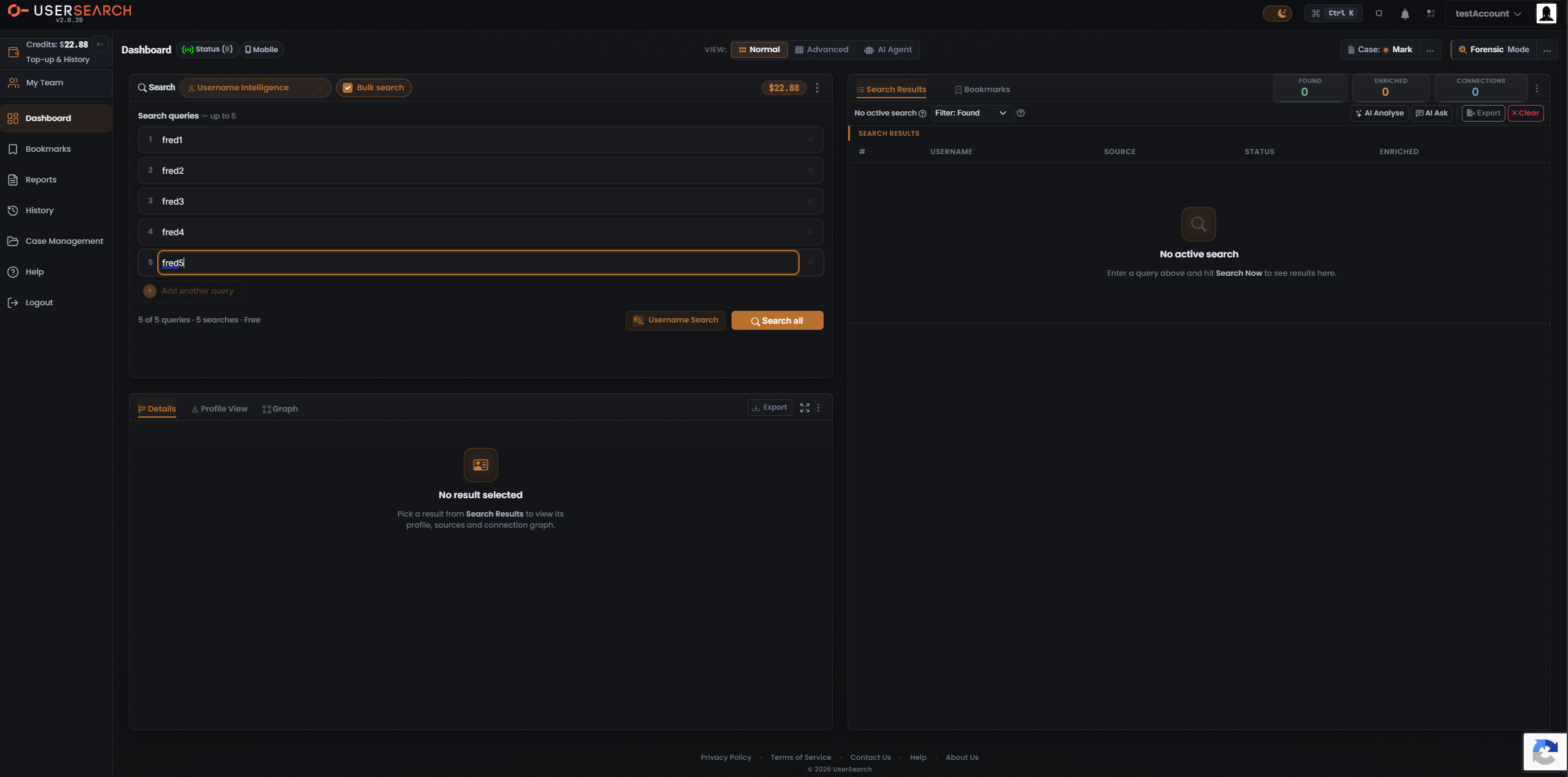
Enable Bulk search
Section titled “Enable Bulk search”Bulk search is controlled by the Bulk search toggle in the search composer header, to the right of the Search type selector.
- Open the search composer.
- Select your Search type (the captured example uses Username Intelligence).
- Check the Bulk search toggle. The composer switches into Bulk search mode and shows the multi-query area.
Enter your queries
Section titled “Enter your queries”The query area is headed “Search queries — up to 5”. Bulk search is capped at 5 queries per search (per Lee, 2026-07-08).
- Type each input value into its own numbered row (1–5). The focused row is drawn with an orange focus outline.
- To add a further value, select Add another query (the plus button beneath the rows), up to the cap of 5.
- To drop a value, use the “x” clear control at the right edge of its row.
Understand the cost before you run
Section titled “Understand the cost before you run”Bulk search cost follows one rule:
Bulk search cost = the sum of each populated query’s cost. One populated query costs one Search, and the run’s total is those per-query costs added together.
This is surfaced as a cost summary line beneath the query rows. In the captured five-query run it reads “5 of 5 queries · 5 searches · Free”:
- 5 of 5 queries — populated queries against the cap.
- 5 searches — the number of Searches the run consumes, one per populated query.
- Free — the total Credit cost for this run.
The total is Free in this example because Username Intelligence is a free-tier module (0 Credits per Search), and five free Searches summed is still Free. The account Credits balance in the composer ($22.88) is unchanged by a free run.
Run the search
Section titled “Run the search”Select the primary Search all button (orange, at the bottom-right of the composer) to run every query in the bulk set in one action.
Read the results
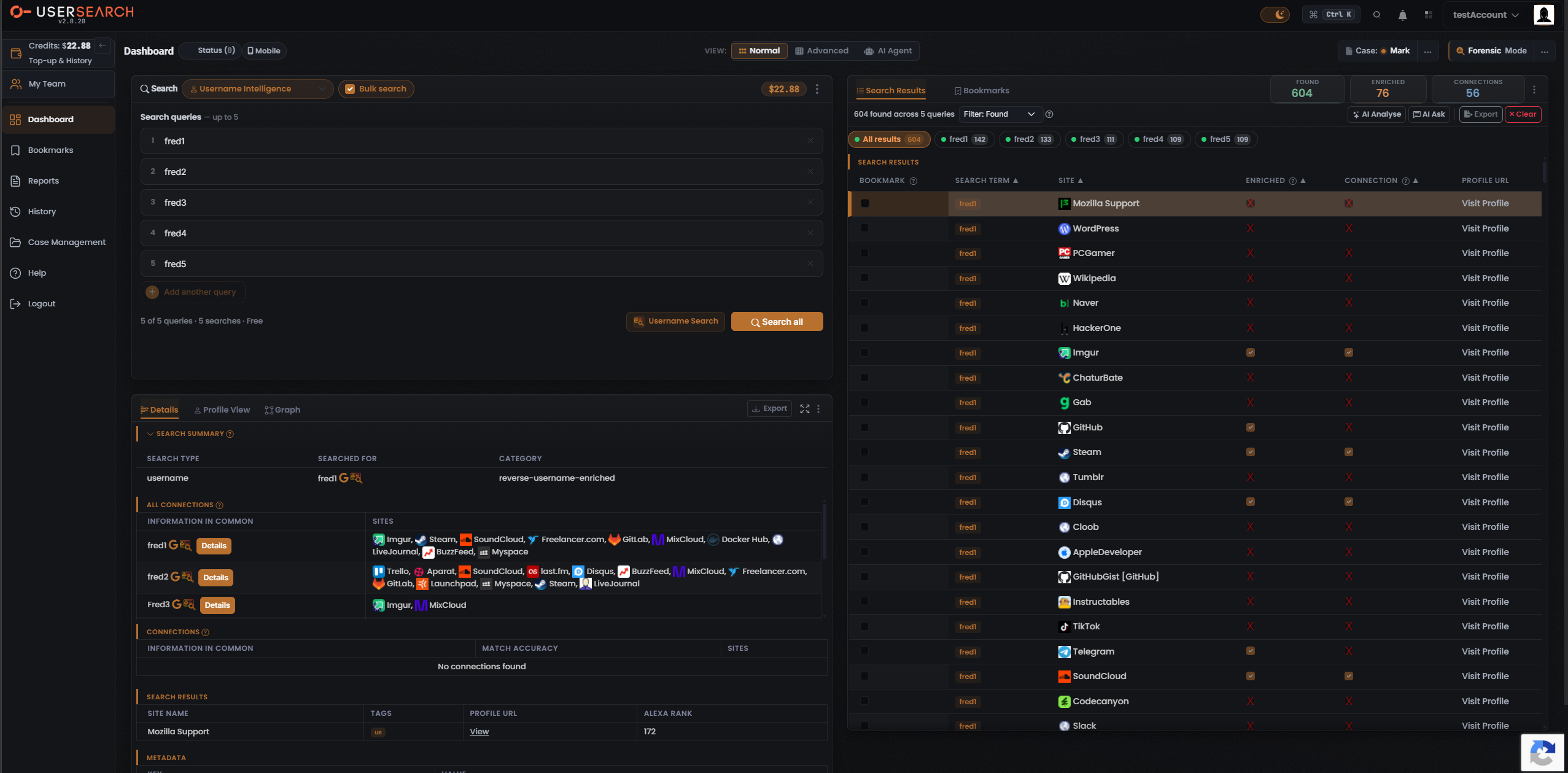
Section titled “Read the results”Running the set produces a single results pane with both a merged (aggregate) view across all queries and a per-query drill-down.
The three counters
Section titled “The three counters”Three counter tiles sit at the top-right of the results pane — Found, Enriched, and Connections:
- Found — the identifier was located on a site (an account exists there).
- Enriched — UserSearch holds further metadata on that account (for example, possible names or linked emails).
- Connections — links surfaced between entities.
In the captured run, the All results view aggregates all five queries to 604 Found, 76 Enriched, and 56 Connections, under the caption “604 found across 5 queries.”
Per-query result tabs
Section titled “Per-query result tabs”After the run, a row of result tabs appears — one All results tab plus one tab per query, each with its own found-count:
| Tab | Found |
|---|---|
| All results | 604 |
| fred1 | 142 |
| fred2 | 133 |
| fred3 | 111 |
| fred4 | 109 |
| fred5 | 109 |
The per-query counts sum exactly to the aggregate: 142 + 133 + 111 + 109 + 109 = 604.
- Selecting All results shows the merged result set across all queries.
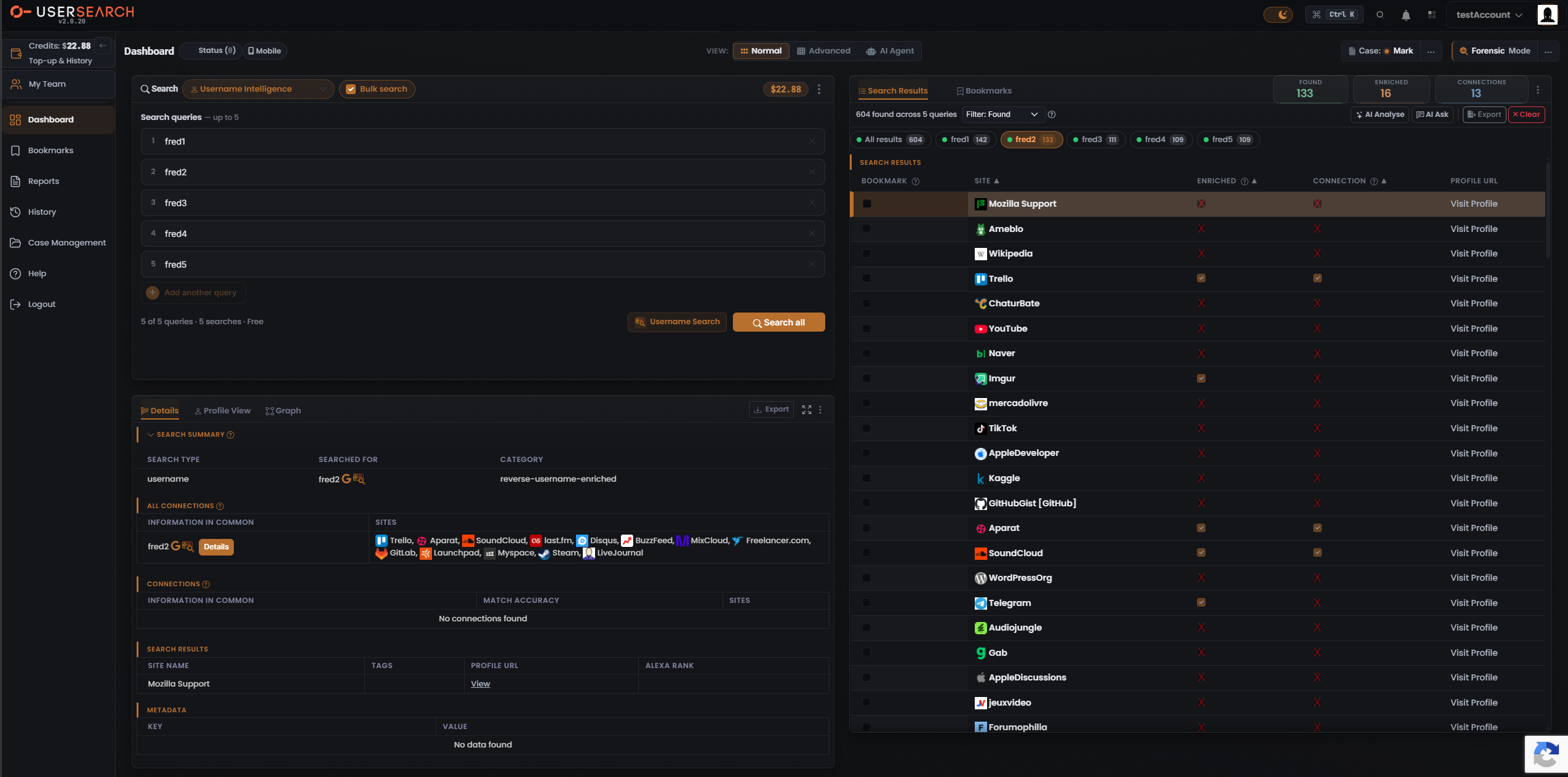
- Selecting a single per-query tab filters both the results table and the three counter tiles down to that one query.
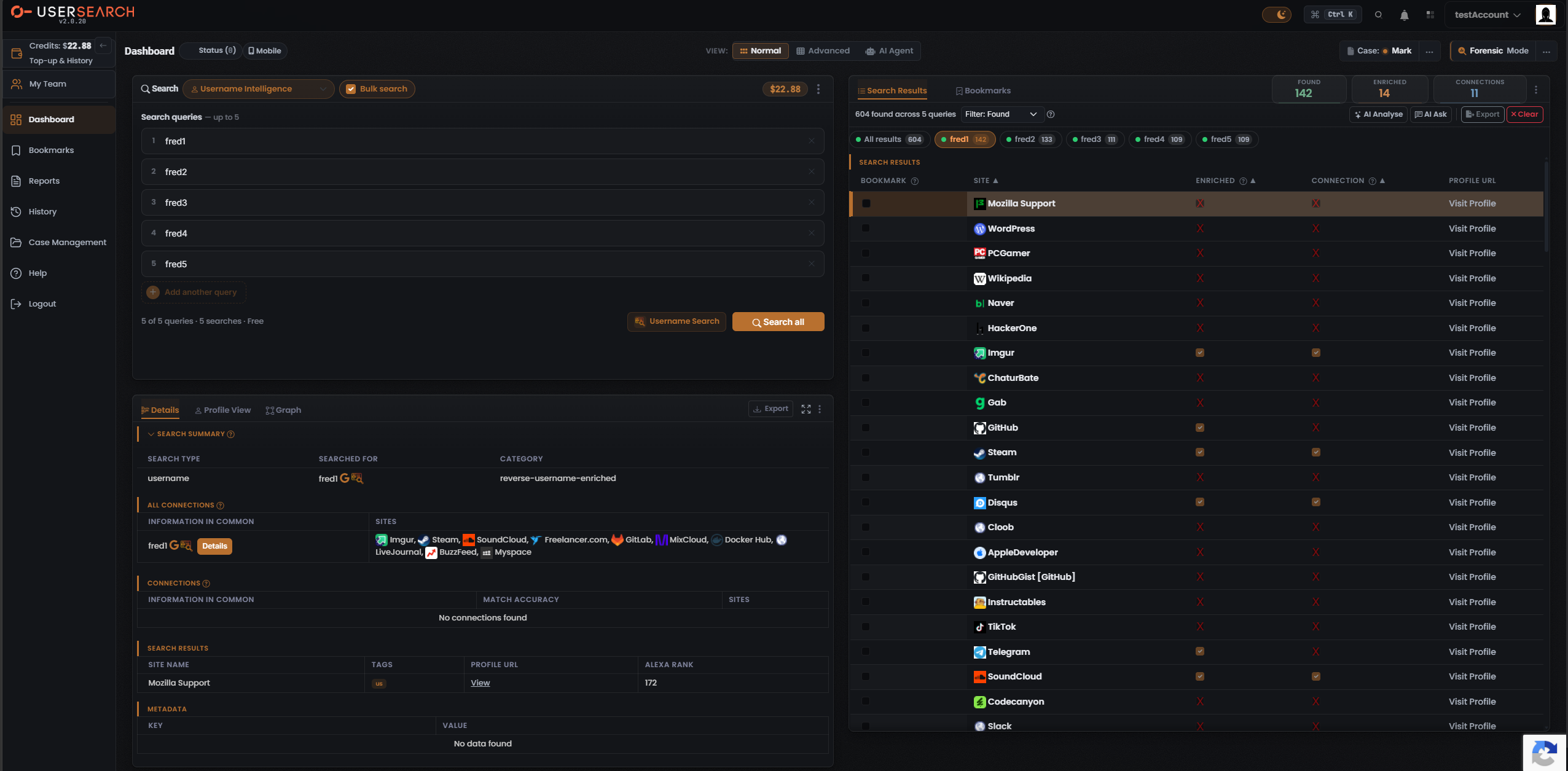
The results table
Section titled “The results table”The results table behaves as in a normal search, with one Bulk-specific difference:
- In the All results view, the table includes an extra SEARCH TERM column showing which query each row belongs to (rendered as an orange query pill, e.g.
fred1). - In a single-query view, the SEARCH TERM column is dropped, because every row shares the same query.
Other columns observed: BOOKMARK (a per-row checkbox), SITE, ENRICHED, and CONNECTION (each a green checkmark for yes or a red “x” for no), and PROFILE URL ending in a Visit Profile link. The SITE, ENRICHED, and CONNECTION headers carry sort carets.
Results-pane actions
Section titled “Results-pane actions”- Tabs: Search Results (active) and Bookmarks.
- A Filter: Found dropdown next to the caption defaults to the Found filter.
- AI Analyse and AI Ask buttons (top-right), plus Export and a red Clear button.
Inspect a single result
Section titled “Inspect a single result”Below the composer, the Details panel (tabs: Details, Profile View, Graph) tracks the selected result and the active per-query tab.
- After a bulk run it shows a SEARCH SUMMARY — the search type, the value searched for (the active query), and the search type.
- An ALL CONNECTIONS section lists per-query “information in common” rows, each with a Details button and a SITES list of shared platforms. In the captured frames its narrower CONNECTIONS sub-section reads “No connections found.”
- A lower SEARCH RESULTS table shows site name, tags, a View profile link, and Alexa rank.
Summary
Section titled “Summary”- Bulk search runs one Module over up to 5 input values in a single run.
- Cost is the sum of each populated query’s cost — one Search per query.
- Results merge into one pane with an All results view and per-query tabs; the per-query found-counts sum to the aggregate.
- It combines with OneScan (many inputs, each fanned across many data sources).
Verified against UserSearch v2.0.20