
Reading Cyber & hosts results
After you run a Cyber & hosts search (see Cyber & hosts search: overview), results populate the Search Results panel on the right. This page explains how to read and verify them. The Cyber & hosts results screen uses the same results component as every other search type, so the general model in Found, Enriched & Connections and the Results table reference applies directly.
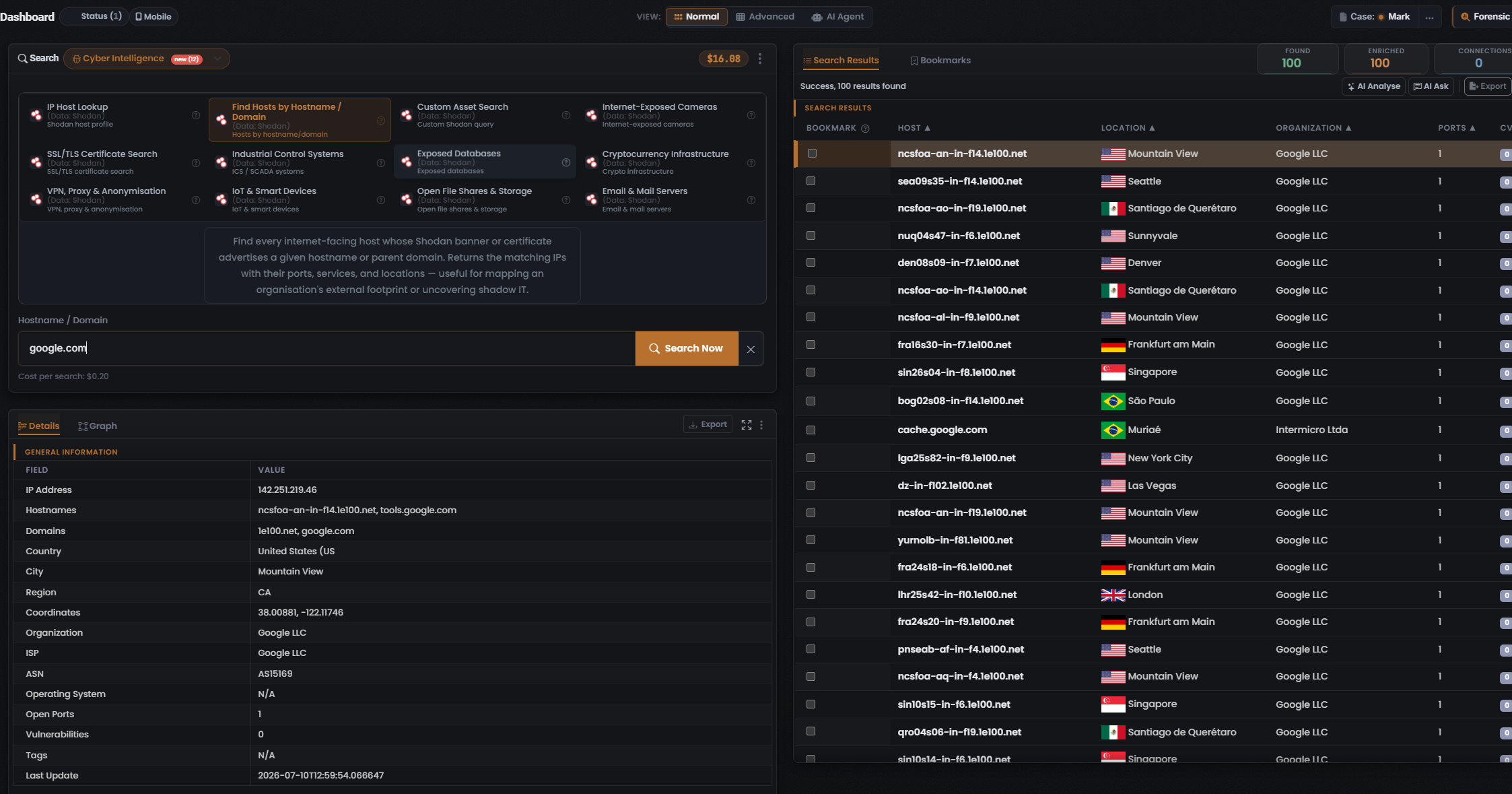
The capture above is a Find Hosts by Hostname / Domain run (data source Shodan, cost per search $0.20) for the query google.com. In this build the Cyber Intelligence search-type selector also carries a new (12) badge.
The three counters
Section titled “The three counters”The results header carries three counters, always in this order. They count three different things and are never interchangeable (Found is green, Enriched orange, Connections white). The captured run reads Found 100 / Enriched 100 / Connections 0, above the status line “Success, 100 results found”:
- Found — the identifier was located in the data source (a matching record exists there). For a Cyber & hosts lookup, this reflects what Shodan holds for the host, asset, or query you ran. Here Found 100 — the query returned 100 matching hosts.
- Enriched — UserSearch holds further metadata on a found record. Enriched is a strict subset of Found — only found records can be enriched. Coverage is Module- and data-source-dependent; in this Shodan host run every found host was enriched (Enriched 100), but do not assume full coverage for other Modules.
- Connections — relationships surfaced between entities (linked clusters rather than raw hits). These are intended to populate the Graph tab; this run shows Connections 0.
The results table
Section titled “The results table”The results panel has Search Results and Bookmarks tabs. Above the table, the header carries the Found / Enriched / Connections counter tiles and a row of action buttons — in this capture AI Analyse, AI Ask, and Export are visible.
- AI Analyse / AI Ask run AI over the result set — see AI Analyse & AI Ask.
- Export downloads the current results — see Export & reports.
The results table adapts its columns to the Module that produced them. The Find Hosts by Hostname / Domain capture shows these columns, left to right:
- Bookmark — a per-row checkbox that saves the host to Bookmarks.
- Host — the hostname of the matching internet-facing host (for example
ncsfoa-an-in-f14.1e100.net). - Location — a country flag plus the city (for example Mountain View, Frankfurt am Main, Singapore, São Paulo).
- Organization — the owning organisation (for example Google LLC).
- Ports — the count of open ports on that host.
The Host, Location, Organization and Ports headers each carry a sort arrow. At least one further column is cut off at the right edge of this capture; its header is not fully legible, so it is not documented here (each row shows a small numeric badge, 0 throughout this run, in that column). Whatever Cyber Module you run, every row’s data source is Shodan, because every Module in this search type queries Shodan.
The Details panel
Section titled “The Details panel”Selecting a row drives the lower-left Details panel, which renders the structured detail of that host across tabs — Details and Graph. In the captured run the Details tab opens on a General Information sub-section laid out as Field / Value rows — the concrete face of enrichment for a Shodan host. The fields shown, in order, are:
- IP Address, Hostnames, Domains — the resolved address and the names/domains that point at it.
- Country, City, Region, Coordinates — the geolocation of the host.
- Organization, ISP, ASN — the owning organisation, its ISP, and the autonomous-system number (for example AS15169).
- Operating System, Open Ports, Vulnerabilities, Tags — the host fingerprint (values may read
N/Aor0where Shodan holds nothing). - Last Update — the timestamp of the Shodan record.
Clicking Graph switches to the Connections graph view. Where a Connections sub-section is populated (not in this run — Connections is 0), it carries a Match Accuracy column that is set by the third-party data source, not computed by UserSearch. For the full anatomy of the Details panel across search types, see Found, Enriched & Connections.
Pivoting from a result
Section titled “Pivoting from a result”Small icons sit beside a searched term or value, implementing the investigative pivot loop (search → enrich → pivot):
- Google “G” icon — a confirmed Google-dork pivot: clicking it opens Google with a preset dork for that value.
- Magnifier icon — a second small icon beside the “G”. Per Lee (2026-07-10) it behaves like the “G” icon: it opens a Google dork query for that value.
See The pivot.
Bookmarks
Section titled “Bookmarks”Switching the results panel to the Bookmarks tab replaces the table with a saved-results list, while the Found / Enriched / Connections counters persist. Each bookmarked row records its term, type, date, and Search type, with a delete action and a View more button to paginate. See Bookmarks.
Verifying a result
Section titled “Verifying a result”- Cross-check the Enriched counter against Found — Enriched should never exceed Found.
- Treat Match Accuracy, where present, as the data source’s own confidence, not a UserSearch computation.
- Use the Google “G” or magnifier pivot (both open a Google dork for the value) to corroborate a host or asset against an independent search before you rely on it.
Related: Cyber & hosts search: overview · Cyber & hosts modules & options · Found, Enriched & Connections · The pivot
Verified against UserSearch v2.0.20