
Leaks & breaches modules & options
The Public Leaks Search type offers a row of Modules. Each Module is a card you click that runs one search against a specific leak data source — or, in the case of OneScan, across several leak data sources at once. Selecting a Module loads its description, its Cost per search line and its query form. IntelX is the Module selected when the Search type opens.
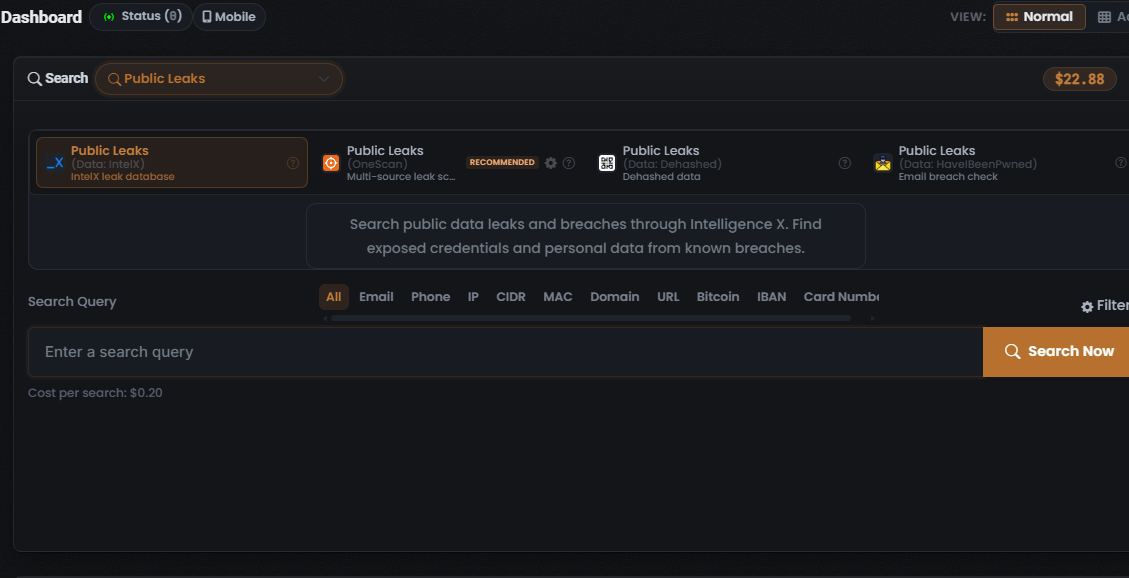
The Modules
Section titled “The Modules”Four Module tiles were observed, each titled “Public Leaks” and distinguished by its data-source sub-label.
| Module | Data source | Cost | Cost type |
|---|---|---|---|
| Public Leaks (Data: IntelX) | IntelX (Intelligence X) | $0.20 | Fixed |
| Public Leaks (OneScan) | Multiple leak data sources | Dynamic (sum of enabled sources) | Dynamic |
| Public Leaks (Data: Dehashed) | Dehashed | Shown on the tile | Fixed |
| Public Leaks (Data: HaveIBeenPwned) | HaveIBeenPwned | Shown on the tile | Fixed |
Public Leaks (Data: IntelX)
Section titled “Public Leaks (Data: IntelX)”- Data source: IntelX / Intelligence X. Sub-label “IntelX leak database”; carries a stylised “X” logo.
- Cost: $0.20 per search — Fixed.
- What it returns: per its description panel, “Search public data leaks and breaches through Intelligence X. Find exposed credentials and personal data from known breaches.”
- Default: IntelX is the pre-selected Module for the Search type.
Public Leaks (OneScan)
Section titled “Public Leaks (OneScan)”- Data source: several leak data sources at once (see OneScan below).
- Cost: Dynamic — the sum of the leak data sources left enabled in its Choose Data Source modal (per Lee, 2026-07-08).
- What it returns: a merged result set spanning the enabled leak data sources; the results Data Source column attributes each row to the source it came from. Sub-label “Multi-source leak sc…” (truncated on screen).
- Carries a coral circular-target logo, a RECOMMENDED badge, a gear (settings) icon and a help (?) icon.
Public Leaks (Data: Dehashed)
Section titled “Public Leaks (Data: Dehashed)”- Data source: Dehashed. Sub-label “Dehashed data”; carries a QR-style square icon and a help (?) icon.
- Cost: Fixed — shown on the tile.
Public Leaks (Data: HaveIBeenPwned)
Section titled “Public Leaks (Data: HaveIBeenPwned)”- Data source: HaveIBeenPwned. Sub-label “Email breach check”; carries an envelope icon and a help (?) icon.
- Cost: Fixed — shown on the tile.
- What it returns: oriented around email breach checks — reporting which known breaches an email address appears in (implied by its “Email breach check” descriptor).
Every Module tile carries a help (?) icon that opens Module-specific help; that help content was not captured.
OneScan — multi-source leak scan
Section titled “OneScan — multi-source leak scan”OneScan is the RECOMMENDED, multi-source Module for this Search type. One OneScan search fans your identifier out across several leak data sources at once and merges the results, so you get broader coverage than any single-source Module in one run. In the results, the Data Source column shows which leak source each row came from.
Because it queries several data sources, OneScan’s cost is Dynamic: the price shown is the running sum of the leak data sources you leave enabled (per Lee, 2026-07-08). Toggling sources off lowers coverage and cost; toggling them on raises both. That trade-off is the lever you pull with the Choose Data Source modal.
The Choose Data Source config
Section titled “The Choose Data Source config”The gear icon on the OneScan tile opens the Choose Data Source modal. For a multi-source Module this modal lists the individual leak data sources OneScan can query, each with a checkbox toggle and its own per-search cost, plus a Total cost line that sums the enabled sources. It also carries a “Remember my choice and hide this from future searches” checkbox, and a footer of Close / Reset / Apply Filters. Apply Filters commits your selection to the pending search.
Per-search filters
Section titled “Per-search filters”Entity-type tabs
Section titled “Entity-type tabs”Public Leaks adds a horizontal entity-type tab strip above the Search Query field. Selecting a tab constrains the search to that kind of identifier before you enter your value. The observed tabs, left to right, are:
All · Email · Phone · IP · CIDR · MAC · Domain · URL · Bitcoin · IBAN · Card Number
All is selected by default, and the strip has a horizontal scrollbar, so more tabs exist beyond the right edge.
The Filter control
Section titled “The Filter control”A Filter control with a gear icon sits at the right end of the entity-tab row.
Related
Section titled “Related”- Leaks & breaches search: overview — what the Search type is for and the end-to-end flow.
- Reading Leaks & breaches results — how to read what these Modules return.
- How UserSearch works — Modules, OneScan and the Credit cost model in general.
- OneScan — the multi-source Module in depth.
- Data-source references: IntelX · Dehashed · HaveIBeenPwned.
Verified against UserSearch v2.0.20