
Choose OneScan vs a single data source
Most Search types give you two ways to run a search: a OneScan Module that queries several data sources at once, or a single-source Module that queries exactly one data source. This guide explains what each does, when to pick which, and how the cost differs.
The short version: OneScan trades a higher, variable cost for broader coverage in one run. A single data source trades coverage for a predictable, usually lower cost.
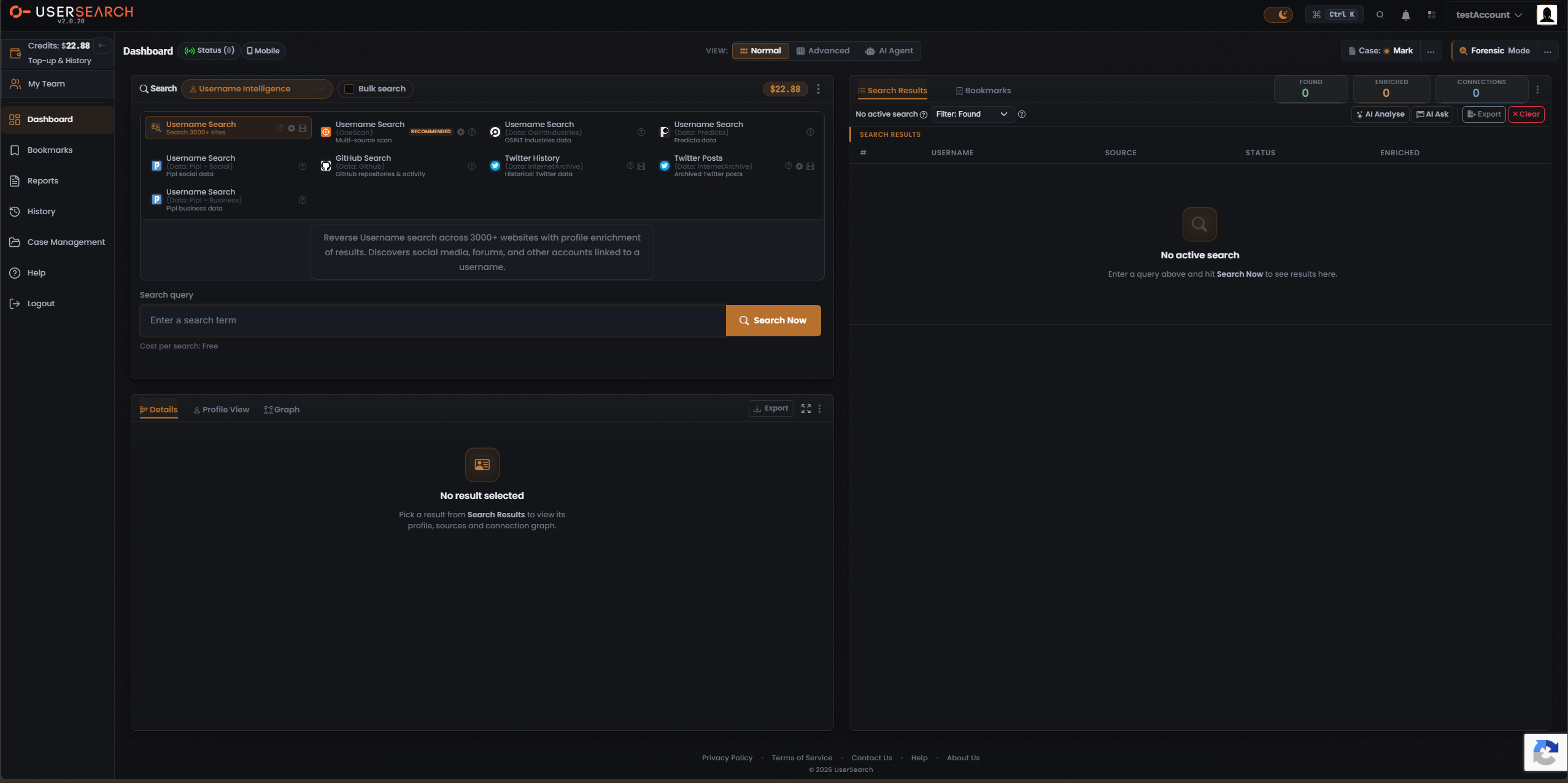
The two options at a glance
Section titled “The two options at a glance”| OneScan | Single data source | |
|---|---|---|
| data sources queried per search | Several at once | Exactly one |
| Coverage | Broad — merged across sources | Scoped to one source |
| Cost model | Dynamic (a range) | Free or Fixed |
| Badge | RECOMMENDED | None |
| Best when | You want maximum coverage in one run | You know which source you want, or want to control spend |
A Module is the card you click; a data source is the external third party that holds the data. A single-source Module usually borrows its data source’s name, but they are distinct things.
What OneScan does
Section titled “What OneScan does”OneScan is a multi-source Module offered in most Search types and marked RECOMMENDED. A single OneScan search fans out across multiple data sources at once and merges the results, so one run gives you broader coverage than any single-source Module. In the results, the Data Source column shows which data source each row came from.
OneScan is the vendor-recommended choice when you want the widest coverage for a query in a single search.
What a single data source does
Section titled “What a single data source does”A single-source Module runs your query against exactly one data source — for example a username against GitHub, or an email against IntelX for Public Leaks. You choose it when you already know which source holds what you need, or when you want a predictable cost.
Because each data source sets its own Match Accuracy, any confidence figure shown against a result is that data source’s own figure, not a UserSearch calculation (per Lee, 2026-07-08).
The cost trade-off
Section titled “The cost trade-off”Every Module shows its price on the Cost per search line beneath the query input, and the value updates to match whichever Module you select. Costs are denominated in Credits. There are three tiers:
| Tier | What it means | Typical Module |
|---|---|---|
| Free | 0 credits | Username Search (3000+ sites) reads “Cost per search: Free” |
| Fixed | One unchanging per-search amount | Public Leaks (IntelX) at $0.20; Company Search at $0.50 |
| Dynamic | A variable amount shown as a range | OneScan |
OneScan is the canonical dynamic-cost Module. Its price is literally the running sum of the data sources you leave toggled on in the Choose Data Source modal. A OneScan search costs the sum of all the data sources left selected (per Lee, 2026-07-08) — so reducing the enabled set lowers the cost. That is the lever you pull to trade coverage against spend.
For example, an observed OneScan cost line reads “Cost per search: $1.20 | Dynamic (0.50 - 1.20)”. The ceiling ($1.20) is Predicta ($0.50) + OsintIndustries ($0.70) with both enabled; the floor ($0.50) is the cheapest single data source left on.
By contrast, single-source search type Modules are fixed (or free). Whole search types such as Vehicle are fixed-price (per Lee, 2026-07-08) — the price does not change when you run them.
Tuning OneScan in Choose Data Source
Section titled “Tuning OneScan in Choose Data Source”Click OneScan’s gear icon to open the Choose Data Source modal. For OneScan it lists the individual data sources it can query, each with a checkbox and its own per-search cost:
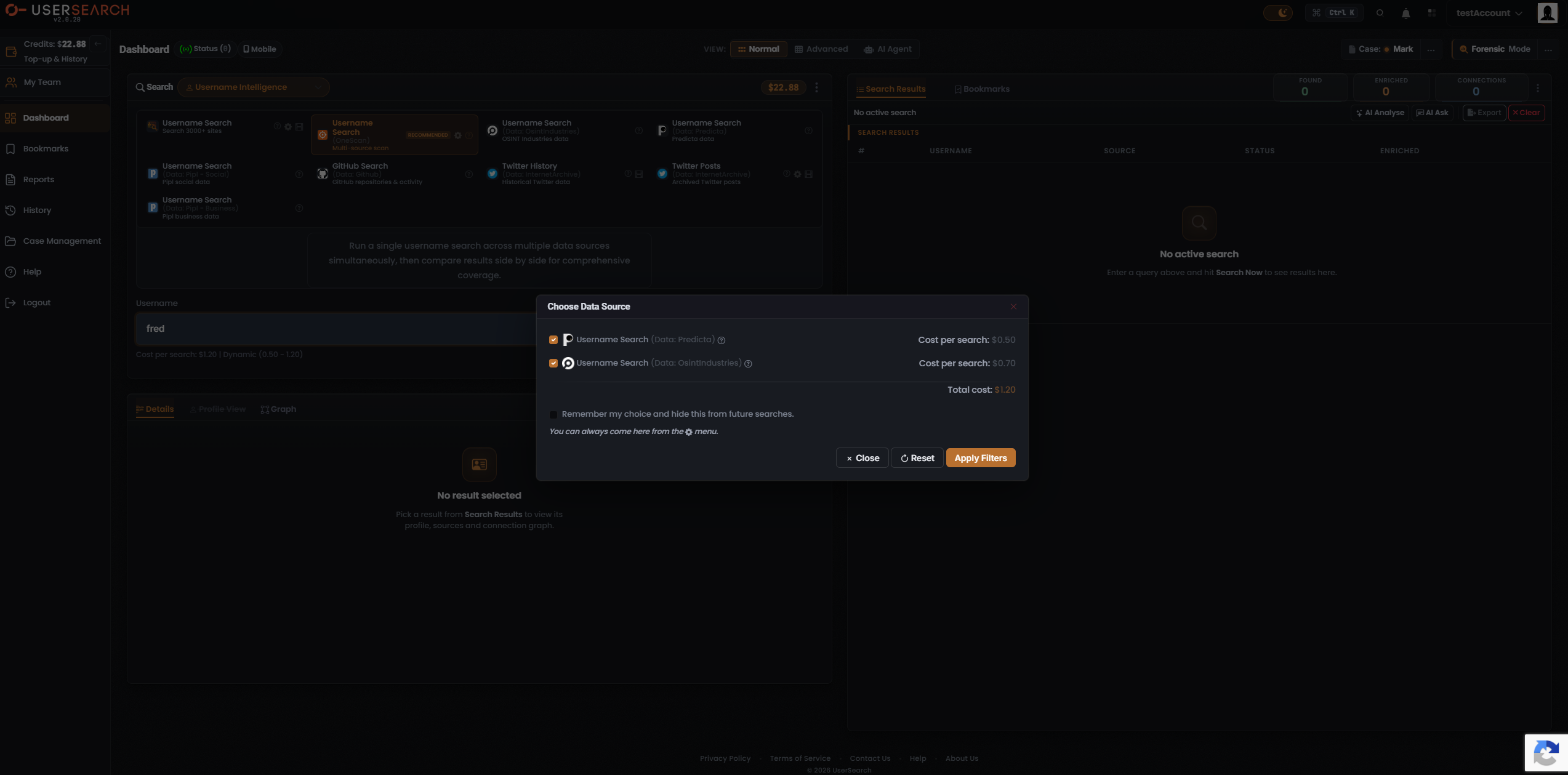
- Review the data source list. Each row shows a data source and its Cost per search (for example, “Username Search (Data: Predicta)” at $0.50 and “Username Search (Data: OsintIndustries)” at $0.70).
- Toggle data sources on or off to widen or narrow coverage. The Total cost line sums the enabled data sources (for example, $0.50 + $0.70 = Total cost: $1.20).
- Optionally enable Remember my choice and hide this from future searches to keep this selection and skip the modal next time. You can reopen it from the gear menu.
- Click Apply Filters to commit the selection. Reset restores defaults; Close or the × dismiss without committing.
Comparing single data sources with one search
Section titled “Comparing single data sources with one search”If you want to compare data sources side by side rather than commit to one, OneScan does exactly that: it runs the same input across the data sources you enabled and merges the output, and the Data Source column tells you which data source produced each row. This is the fastest way to see which source has the best coverage for a particular query before you decide to rely on a single data source for future searches.
How to decide
Section titled “How to decide”Choose OneScan when:
- You want the broadest possible coverage for a query in one run.
- You don’t yet know which data source holds the data and want to compare them.
- The dynamic cost is acceptable, or you’ll trim the data source set to fit your budget.
Choose a single data source when:
- You already know which source has what you need.
- You want a predictable, fixed (or free) cost.
- You only need results from one specific data source.
Steps: run either option
Section titled “Steps: run either option”- Choose the Search type in the composer header dropdown.
- Click the OneScan card (marked RECOMMENDED) or a single-source Module card. Its description, Cost per search line, and query form load below.
- For OneScan, optionally open Choose Data Source (gear) to toggle data sources, then Apply Filters.
- Type your query and confirm the Cost per search you expect to pay.
- Click Search Now. The Search Results panel populates.
Verified against UserSearch v2.0.20