
Reading Images & faces results
This page explains how to read a results screen after you run an Images & faces search. The mechanics are the same as every other search type in UserSearch, so this page maps the general Found, Enriched & Connections concept onto an image search specifically.
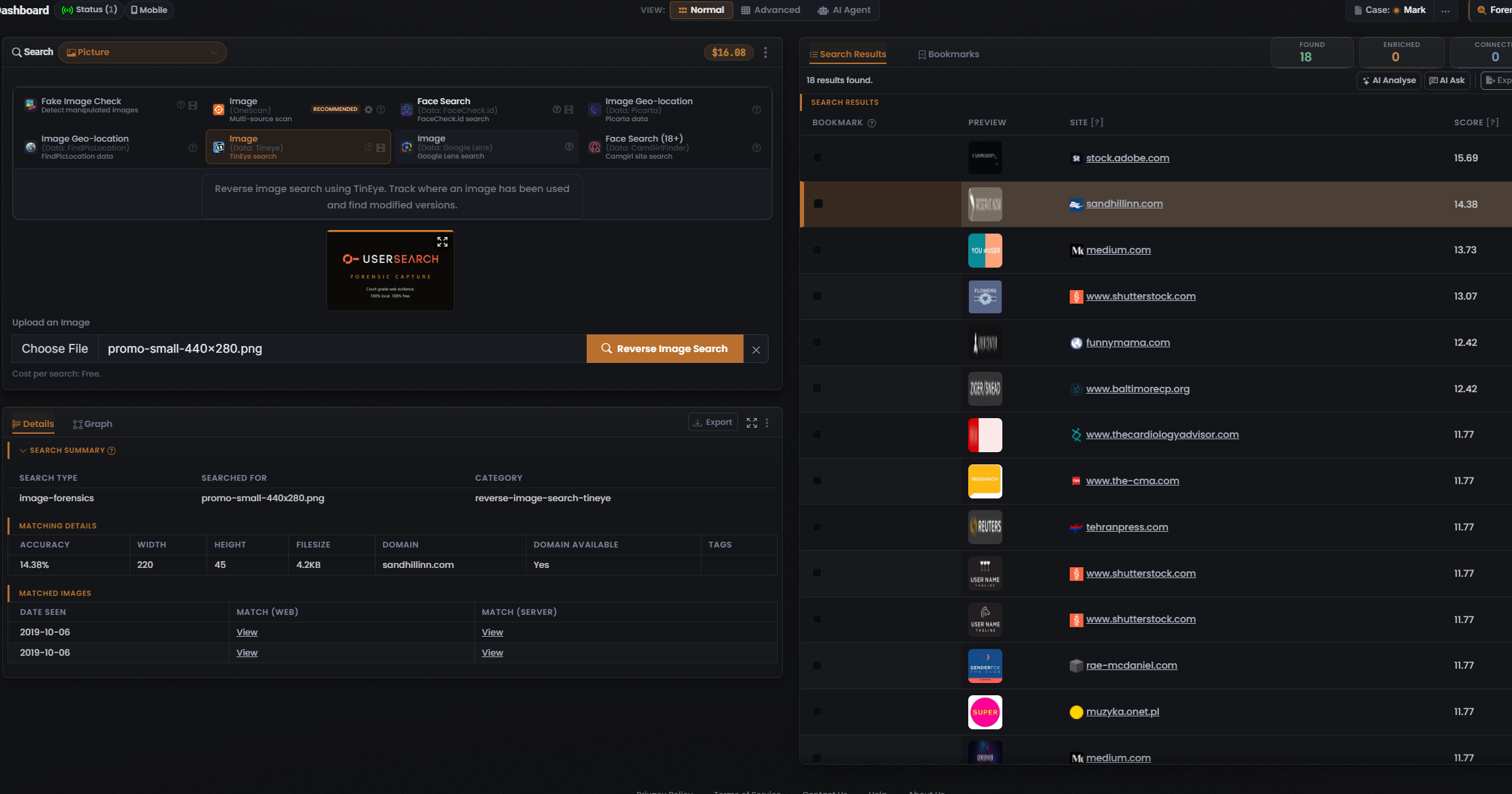
The capture above is an Image Module run (data source TinEye, cost per search Free) — a reverse image search on an uploaded file, promo-small-440x280.png, previewed in the composer next to a Reverse Image Search button. It reads Found 18 / Enriched 0 / Connections 0.
The three header counters
Section titled “The three header counters”Every populated results header carries the same trio of counters, in this order — and they count three different things, so never swap the words. The captured TinEye run reads Found 18 / Enriched 0 / Connections 0, above the status line “18 results found.”:
- Found (green) — the image/face was located on a site or data source; a matching result exists there. Here Found 18 — TinEye returned 18 sites carrying the image.
- Enriched (orange) — UserSearch holds further metadata on that result (profile-level detail). Enriched is a strict subset of Found — only found results can be enriched — and coverage is module/data-source-dependent. This TinEye run shows Enriched 0: a reverse-image run can return matches with no enrichment layer, so enrichment coverage is Module-dependent and other Modules may enrich.
- Connections (white) — relationships/links surfaced between entities, rather than raw hits. These are intended to populate the Connections graph; this run shows Connections 0.
Definitions per Lee, 2026-07-08. For an image search, read Found as “how many places the photo/face turned up”, and Enriched as “how many of those the data source returned extra profile detail for”.
The results table
Section titled “The results table”Results appear in the right-hand panel under a Search Results tab (with a sibling Bookmarks tab). Above the table:
- The Found / Enriched / Connections counter tiles are pinned top-right.
- A status row shows a message — here “18 results found.”
- Action buttons: AI Analyse, AI Ask, and Export are visible in this capture — run AI analysis over the set, ask an AI question scoped to the results, or download the results. See AI features.
Columns in the TinEye capture
Section titled “Columns in the TinEye capture”The results table changes its columns to match the Module that produced them. The Image (TinEye) capture shows a reverse-image layout, left to right:
- Bookmark — a per-row checkbox that saves the match to Bookmarks.
- Preview — a thumbnail of the matched image as found on that site (the reverse-image layout renders a picture per row, not a favicon).
- Site — the site the image was found on (for example stock.adobe.com, medium.com, www.shutterstock.com).
- Score — TinEye’s match score for that row, sorted high to low (for example 15.69, 14.38, 13.73 down to 11.77).
The Site and Score headers each carry a small help ”?” indicator.
The Details panel
Section titled “The Details panel”Selecting a row drives the lower-left Details panel, which organises the selected result into tabs (Details and Graph) and, within Details, a stack of labelled sub-sections. Selecting the sandhillinn.com row (Score 14.38) in the captured run drives these sub-sections:
- Search Summary — Search type, Searched for, and Category as columns. Here they read
image-forensics,promo-small-440x280.png, andreverse-image-search-tineye. - Matching Details — the TinEye metadata for the selected match, as columns: Accuracy (14.38% — this equals the row’s Score), Width (220), Height (45), Filesize (4.2KB), Domain (sandhillinn.com), Domain Available (Yes), and Tags.
- Matched Images — a table of where the image was seen, with Date Seen (for example 2019-10-06) and two links per row, Match (Web) and Match (Server), each a View link.
The panel also carries a Graph tab that switches to the Connections-graph view (rendered view not yet captured). The Accuracy shown here is TinEye’s own Match Accuracy — set by the third-party data source, not computed by UserSearch (per Lee, 2026-07-08). Because this run shows Enriched 0, there is no separate enrichment block; on Modules that enrich, that is where the extra profile detail a data source returned for a matched face or profile would appear.
Verifying an image result
Section titled “Verifying an image result”- Corroborate, don’t trust a single hit. Treat each Found row as a lead. In the TinEye layout, follow the Match (Web) / Match (Server) View links (or open the Site) and confirm the image genuinely matches before relying on it.
- Weigh the match score. The Score column is TinEye’s own match value, not a UserSearch computation — read a higher score as a stronger candidate, but still verify.
- Pivot to widen the search. Beside a searched term, a Google “G” icon opens Google with a preset dork for that value; the magnifier icon beside it does the same — per Lee (2026-07-10) it also opens a Google dork query for the value. Use either to cross-check a match against the open web. See The pivot.
- Weigh the data source. For geo-location Modules especially, the returned location is a prediction from the data source (Picarta / FindPicLocation) — verify against other evidence. See Data sources & reliability.
- Bookmark and export the rows worth keeping via the per-row bookmark checkbox and the Export action. See Bookmarks and Export & reports.
Related: Images & faces search: overview · Images & faces modules & options · Found, Enriched & Connections · The pivot · Data sources & reliability
Verified against UserSearch v2.0.20